Get started with Reclaim in four steps
Reclaim finds revenue you've earned but haven't received — unbilled work, overpayments, missing fees, and more. Here's how to run your first analysis and start recovering.
How it works
Reclaim scans your business and financial data for twelve categories of missed revenue — from unbilled work and kilometers to overpayments, expired agreements, and missing rent. Every opportunity comes with an estimated amount, the calculation behind it, and a suggested recovery draft so you know exactly what to chase.
Dashboard
Acme Construction · Your reclaims at a glance
€48,200
Total identified
€12,400
Total recovered
€2,840
Outstanding fees
3
Critical & high
Recovery by source
Your first analysis
Create your company profile
Add your company name, currency, and contact details from the Company page. This powers your invoices and personalizes every analysis.
Add your business description
On the New Analysis page, describe what your business does. That alone is enough to run a first scan — no financial data required.
Add financial data (optional but recommended)
Paste invoice text, upload a file, or connect your accounting system. The more data you provide, the more precise the recovered amounts.
Review your opportunities
Each reclaim shows the source, an estimated amount, the calculation behind it, and a suggested recovery draft. Move the ones you want to act on to your Opportunities list.
New Analysis
Share your financial data to start finding revenue
Upload files
Invoices, contracts, CSV
Connect accounting
Google Sheets, e-conomic
Recovery categories to scan
Connecting your accounting system
Connecting your accounting system lets Reclaim pull your invoices automatically — no manual copy-paste. On the New Analysis page, choose your system and follow the steps:
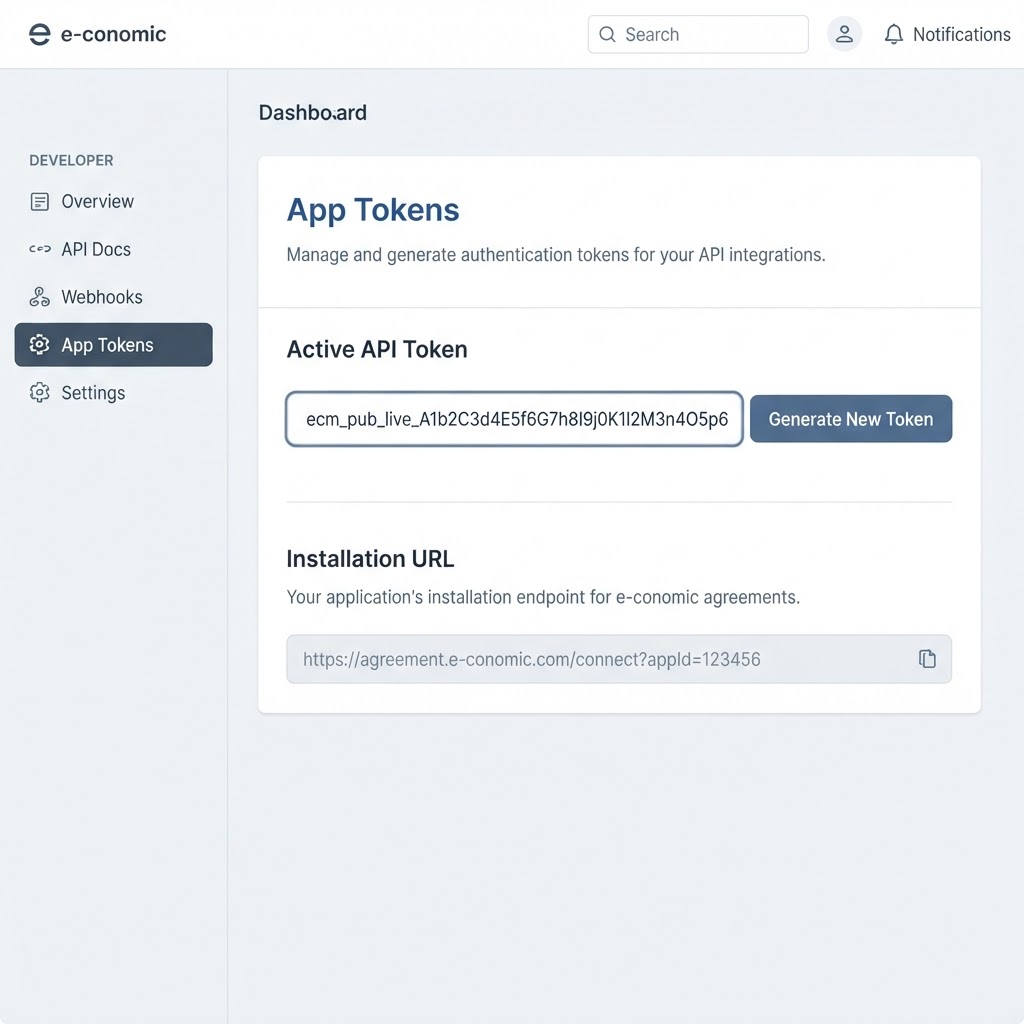
e-conomic
Open the Installation URL from your e-conomic developer app while logged into your agreement, approve access, and paste the generated Agreement Grant Token.
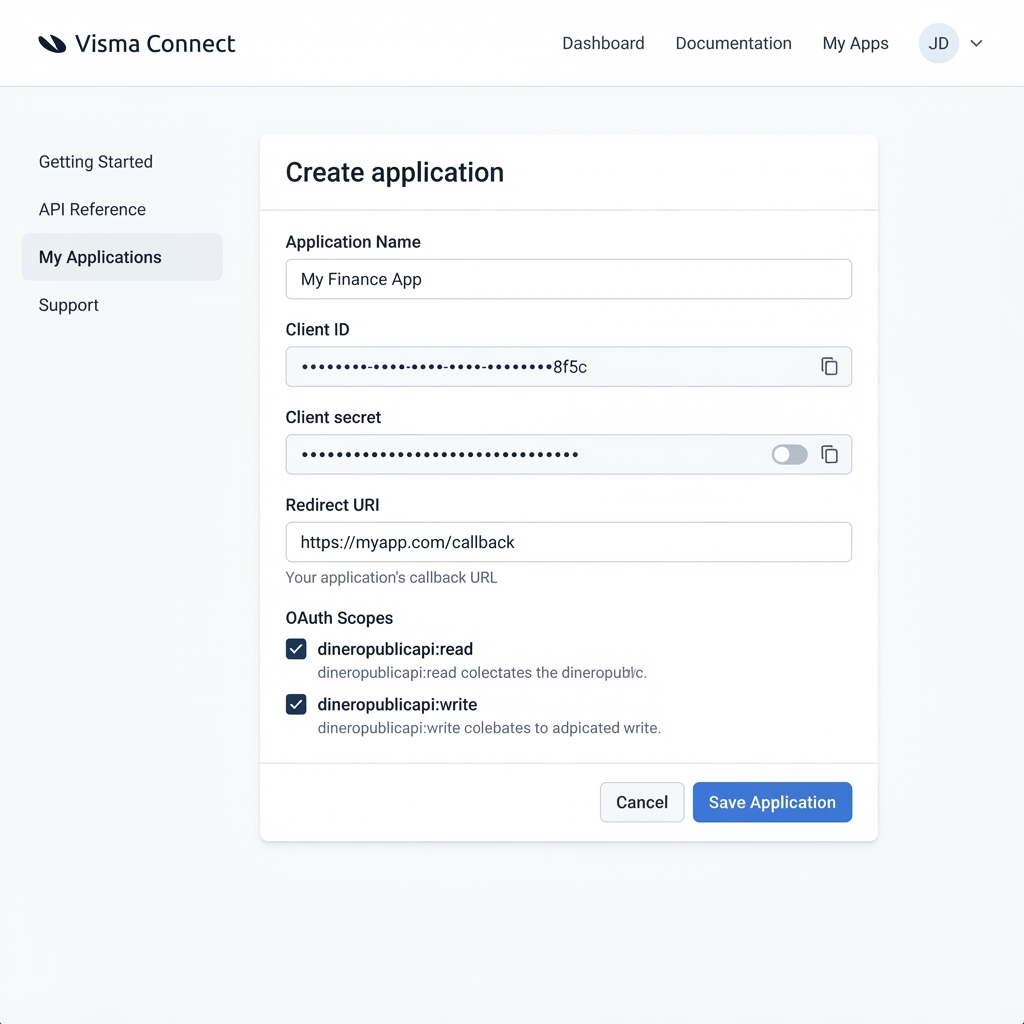
Dinero
Enter your Visma Connect client ID and secret, save them to your profile, then click Connect Dinero — you'll authorize in a popup and your invoices load automatically.
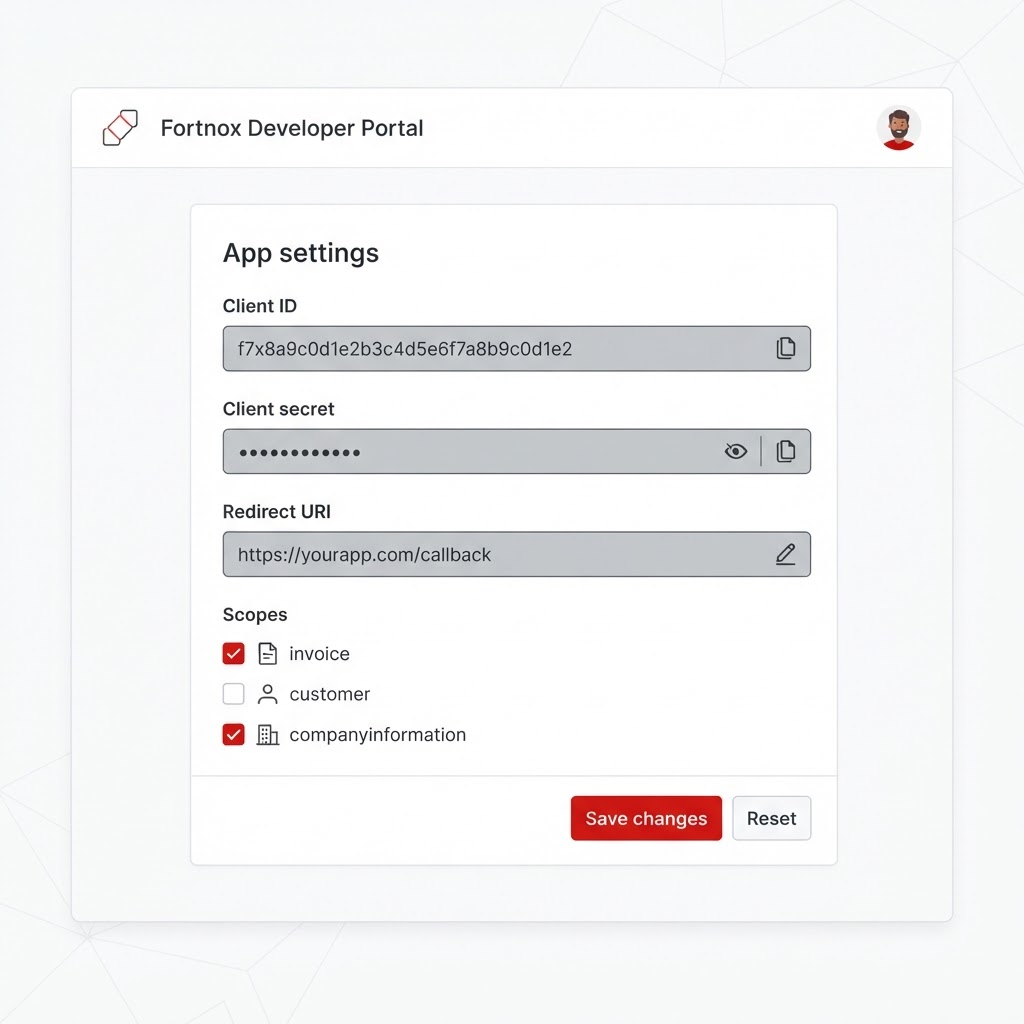
Fortnox
Register an app in the Fortnox developer portal, paste your client ID and secret, save them, then click Connect Fortnox to authorize and pull invoices via OAuth.
Your client secret is encrypted at rest and never sent back to your browser — only Reclaim's server uses it to authorize the connection on your behalf.
How billing works
No subscription, no upfront cost — you only pay when we find money.
Each confirmed reclaim is invoiced at 20% of the recovered amount, plus applicable VAT.
If a reclaim is later dismissed, we issue a credit note for its invoice automatically.
Pay invoices by card from the Invoices page, or by bank transfer using the details on your invoice.
Invoices
1 paid · 1 outstanding · €3,680 in fees
Double Payment — Supplier AB
Unbilled Overtime — Site Project B
Fee breakdown — INV-2026-002